
Pinterest rewards consistency. Accounts that pin regularly — several times a day, every day — see far better distribution than accounts that post in bursts and go quiet for weeks. The problem? Manual pinning at scale is exhausting.
This guide shows you exactly how to schedule Pinterest pins automatically, so your boards stay active around the clock without you sitting at a computer all day.
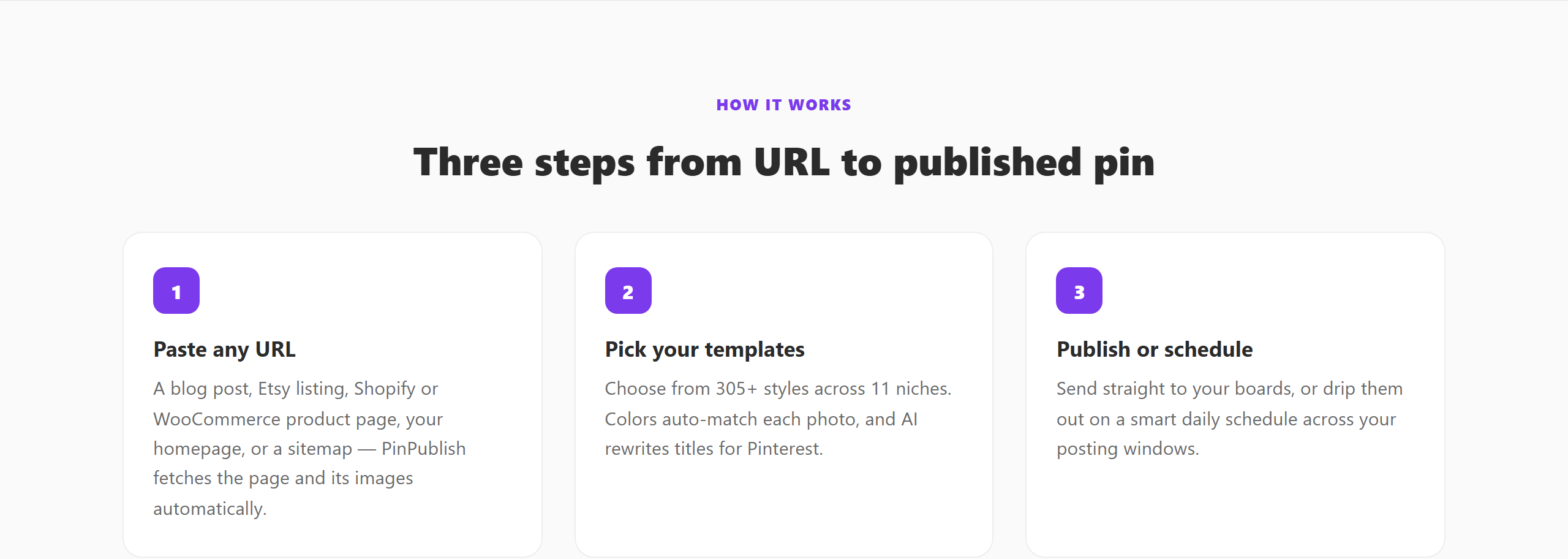 Paste a URL, pick a template, and PinPublish schedules the pin for you.
Why Consistent Pinning Matters on Pinterest
Pinterest is a discovery platform, not a social network. Unlike Instagram or Twitter where fresh content dominates, Pinterest resurfaces older pins for months or even years. That means every pin you schedule today is still working for you next quarter.
But Pinterest’s algorithm favors accounts that are consistently active. Spacing your pins throughout the day — rather than dumping 20 pins at once — signals that you’re a genuine creator, not a spammer. Scheduled pinning is the only practical way to achieve that consistency.
What You Need Before You Start
- A Pinterest Business account (free to create at business.pinterest.com)
- A tool that connects to Pinterest’s official API — this matters because third-party scrapers violate Pinterest’s terms of service
PinPublish uses Pinterest’s official API, so your account stays safe and your pins distribute properly.
Step 1: Connect Your Pinterest Profile
Once you create a PinPublish account, click Add Profile and authorise your Pinterest Business account through Pinterest’s OAuth flow. This gives PinPublish permission to publish to your boards on your behalf.
You can connect up to 5 profiles on the Pro plan — useful if you manage boards for multiple blogs, clients, or niches.
Step 2: Create Your Pins
There are two ways to build your pin queue in PinPublish:
Option A — Paste a URL: Drop in a blog post URL and PinPublish fetches the article’s images and title automatically, then lets you pick a template from the 305+ library. Adjust the text if you want, then add to queue.
Option B — Use Automations: Point PinPublish at your site’s RSS feed or sitemap. It crawls new articles and prepares a batch of pin drafts using your saved templates. Review the batch, approve the ones you like, and they go straight into the schedule queue.
Step 3: Set Your Schedule
Navigate to Schedule and choose how many pins to publish per day and at what times. PinPublish will space them evenly and publish each one at the right moment — even while you’re asleep.
You can set different schedules for different Pinterest profiles, and pin to specific boards based on the topic of the article.
Step 4: Let It Run
That’s it. PinPublish watches your queue and publishes each pin at the scheduled time. You’ll get a notification if anything fails (expired token, full board, etc.), but in practice the queue just runs.
Tips for Better Results
Pin to multiple boards. If an article about “banana bread recipes” fits in both your “Easy Baking” and “Quick Desserts” boards, schedule it to both. More boards = more discovery surfaces.
Vary your templates. Don’t use the same design for every pin from the same article. Different templates surface on different search terms and to different audiences. PinPublish’s template library is built with this in mind — there are multiple layouts for every visual style.
Schedule for your audience’s active hours. Pinterest Analytics shows when your audience is most active. Schedule your best pins in those windows, and fill the rest of the day with lower-priority content.
Keep a 30-day buffer. If you have 30 days of pins pre-scheduled, a week’s travel or a busy product launch won’t break your Pinterest consistency streak.
Frequently Asked Questions
Will scheduled pins get the same reach as manually posted pins? Yes — Pinterest’s API treats scheduled (API-posted) pins the same as manually posted ones, as long as you’re using an approved API partner.
How many pins should I schedule per day? Most creators see good results with 5–25 pins per day. Start at 5–10, watch your analytics, and scale up gradually.
Can I schedule pins for multiple boards at once? Yes. When you approve a pin in PinPublish, you can assign it to multiple boards, and a separate scheduled entry is created for each.
Ready to stop pinning manually? Start a free PinPublish account — 400 credits per month, no credit card required.