
If you have a blog with 50 posts, a Shopify store with 100 products, or an Etsy shop with 200 listings — you have enough content for thousands of Pinterest pins. The challenge is creating them without spending weeks in a design tool.
Here’s how to bulk-create Pinterest pins efficiently.
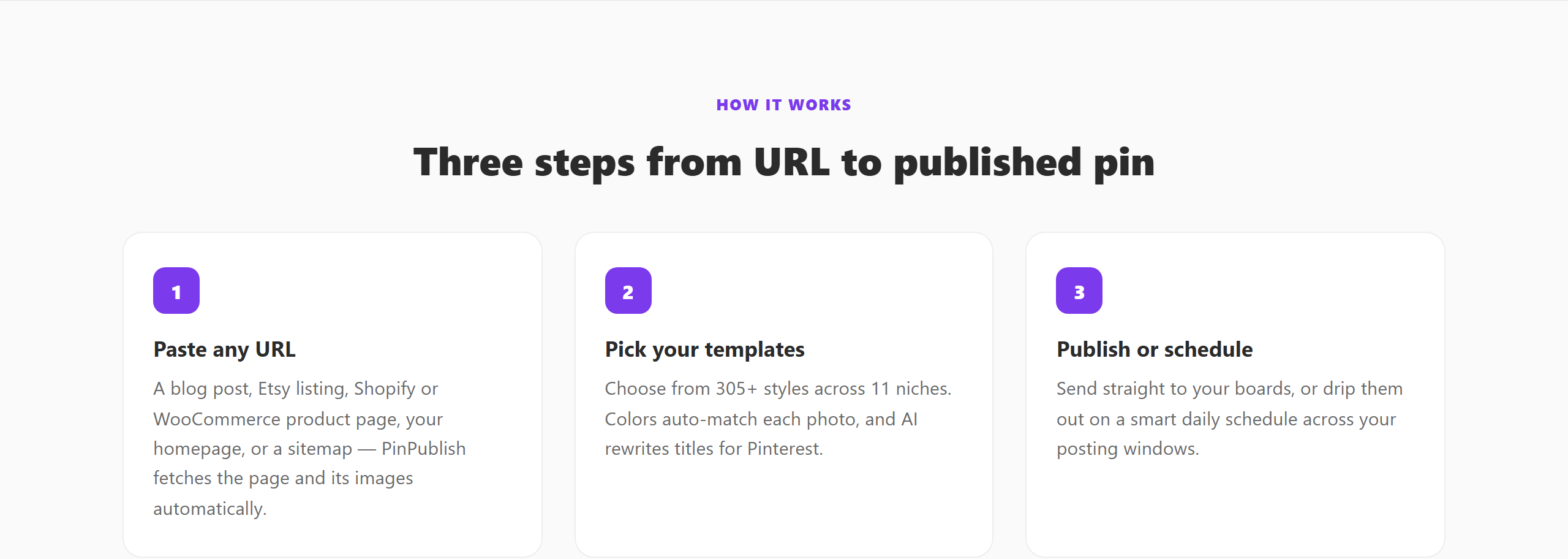 Point PinPublish at your sitemap to generate pins in bulk.
Why Bulk Pin Creation Matters
Most Pinterest creators dramatically under-pin their existing content. One article can generate 5–10 different pin designs (each targeting a slightly different keyword or design style). A 50-post blog could have 250–500 pins — most creators have 20.
More pins = more distribution surfaces = more traffic. Bulk creation is how you close that gap.
Method 1: PinPublish Automations (Fastest)
This is the most efficient method for content creators.
- Sign up for PinPublish
- Connect your Pinterest Business account via OAuth
- Go to Automations and enter your site’s RSS feed URL or sitemap URL
- PinPublish crawls all your URLs and generates pin drafts using your saved templates
- Review the batch — approve or edit individual pins
- Set a publishing schedule — PinPublish spaces them out over days or weeks
A 100-post blog typically produces 200–400 pin drafts in about 10 minutes. You review the batch, approve the ones you like, and PinPublish works through the queue automatically.
Method 2: Canva Bulk Create
Canva Pro has a Bulk Create feature that lets you upload a spreadsheet (CSV) with text values and auto-populate a pin template for each row.
- Design a pin template in Canva
- Add data fields (title text, subtitle text)
- Upload a CSV with your article titles and subtitles
- Canva generates one pin per CSV row
Good for: Basic bulk design. Doesn’t handle scheduling or Pinterest publishing — you’d still need to export and upload manually.
Method 3: Manual Batching
If you don’t use a dedicated tool, you can still batch the work:
- Open Canva (or your design tool) with a Pinterest pin template
- Work through your article list, changing the title text for each pin
- Export all pins as a ZIP file
- Upload to Pinterest’s bulk upload feature (available in Pinterest Ads Manager)
This works but it’s slow. The manual export-upload step is the bottleneck.
After Bulk Creation: Scheduling
Creating 200 pins is only useful if they’re scheduled to publish gradually. Dumping 200 pins at once looks like spam to Pinterest’s algorithm.
PinPublish spaces your queue automatically — you choose how many pins per day, and it handles the timing. For strategy around publishing frequency, see Pinterest Posting Tips.
For e-commerce bulk pinning, see the dedicated guides for Pinterest for Shopify and Pinterest for Etsy Sellers.